A Complete Guide to Personalizing Your PC with the Best Free Windows 11 Themes
Discover how to transform your desktop workspace using built-in customization tools, dynamic backgrounds, and free layout options.
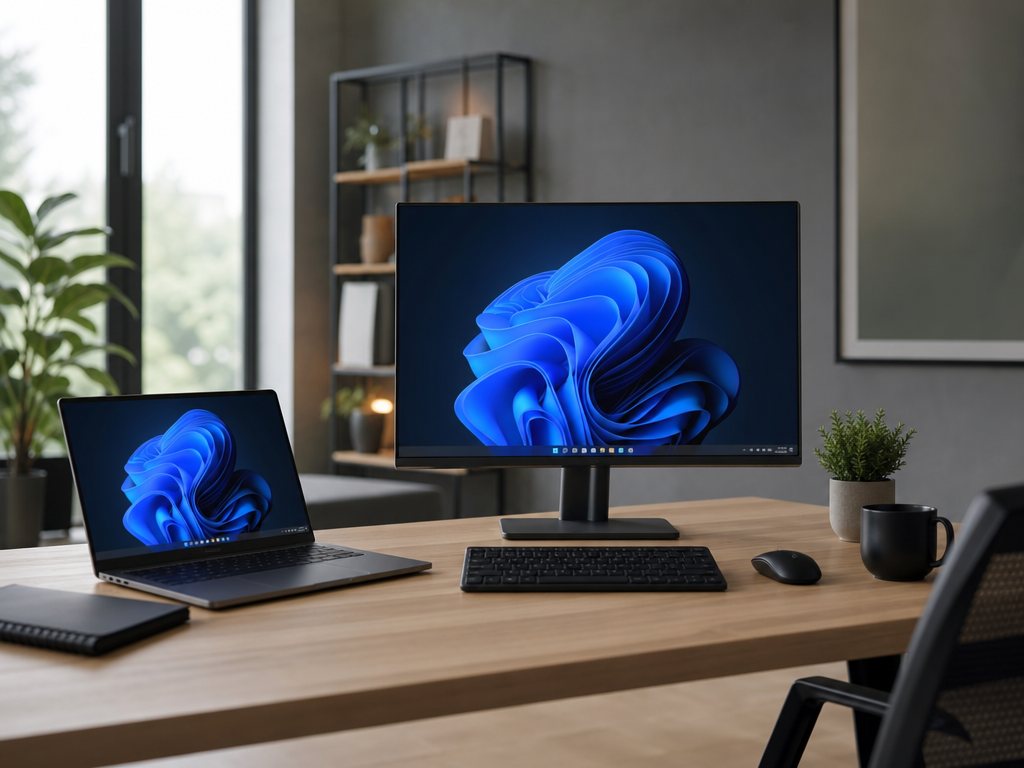
Elevating Your Windows 11 Workspace with Free Themes
Windows 11 provides a robust set of built-in tools designed to transform the visual aesthetic of your workspace without requiring any financial investment. Accessing these settings is straightforward and allows you to adjust everything from your main background to accent colors. To begin tailoring your workspace, open the system settings menu and navigate to the personalization section, or simply right-click on an empty space on your desktop and select the personalization option from the context menu.
Sources: support.microsoft.com
Exploring Built-In Free Theme Styles
Under the personalization settings, you can choose from several distinct background styles to establish your theme. The static picture option allows you to select a single high-quality image, either from the default system catalog or your private files. Alternatively, you can configure a slideshow theme that cycles through a designated folder of images at specified intervals, giving you the ability to shuffle the order or manually skip to the next image by right-clicking your desktop.
For a completely hands-off approach, you can enable the spotlight feature. This setting automatically fetches a new, curated professional image from around the globe every single day. This ensures your desktop remains visually dynamic and fresh without requiring any manual updates or storage overhead.
Sources: support.microsoft.com
Fine-Tuning Image Fits for a Clean Aesthetic
To ensure your chosen background looks sharp and professional, Windows 11 offers several adjustment fits. The fill option enlarges the image to cover your entire display, though it may crop some edges to maintain coverage. The fit option scales the image to fit within the screen boundaries while preserving its original aspect ratio, which may result in solid borders if the image dimensions do not align perfectly with your monitor.
For smaller patterns or retro designs, the tile setting repeats the image across the screen, while the center option places the image in the middle of your screen without any scaling. If you are using an ultra-wide monitor or a multi-display workstation, the span setting allows a single high-resolution image to stretch seamlessly across all of your active monitors.
Sources: support.microsoft.com
Handling Multiple Monitors and Virtual Desktops
If your workstation features a multi-monitor configuration, you can customize your theme further by applying unique backgrounds to each display. Under the personalization settings, right-click on any image preview to assign it to a specific monitor. If you configure a slideshow background across multiple monitors, the system will naturally cycle a different image onto each screen to keep the visuals diverse.
For users who organize their workflow using virtual desktops, you can assign a unique background image to each virtual workspace to help differentiate tasks. To do this, right-click on your chosen image preview in the recent images list and select the specific desktop you want to apply it to. Keep in mind that slideshow backgrounds and individual monitor assignments are not supported when utilizing multiple virtual desktops.
Sources: support.microsoft.com
Dynamic Daily Themes with Bing Wallpaper
For users who want an evolving background experience, the free Bing Wallpaper application is a highly recommended utility. This official app automatically updates your desktop background daily with stunning professional photography from different locations across the globe.
In addition to providing beautiful imagery, the app displays a brief description detailing the history and location of each photo, offering an educational element to your daily customization. While third-party themes online may sometimes charge fees or change their terms, this utility remains a reliable, free option for keeping your desktop visually engaging.
Sources: support.microsoft.com
How to Safely Revert Your Theme Settings
One of the best aspects of personalizing Windows 11 is that every change is entirely reversible. If you decide a new theme or background does not suit your style, you can quickly restore your system to its original state. Simply right-click on your desktop, choose the personalization option, and go to the background settings.
From there, you can select a solid color and choose a neutral background, or select the picture option and choose one of the default Windows 11 system images to return to the standard look. Because third-party customization rules, app availability, and store prices can change over time, sticking to these built-in system settings ensures your PC remains stable and easy to manage.
Sources: support.microsoft.com