How to Connect a Fubo Account to Your Smart TV or Streaming Device
Configure your streaming player and link your Fubo subscription using a simple web activation code for a seamless viewing experience.
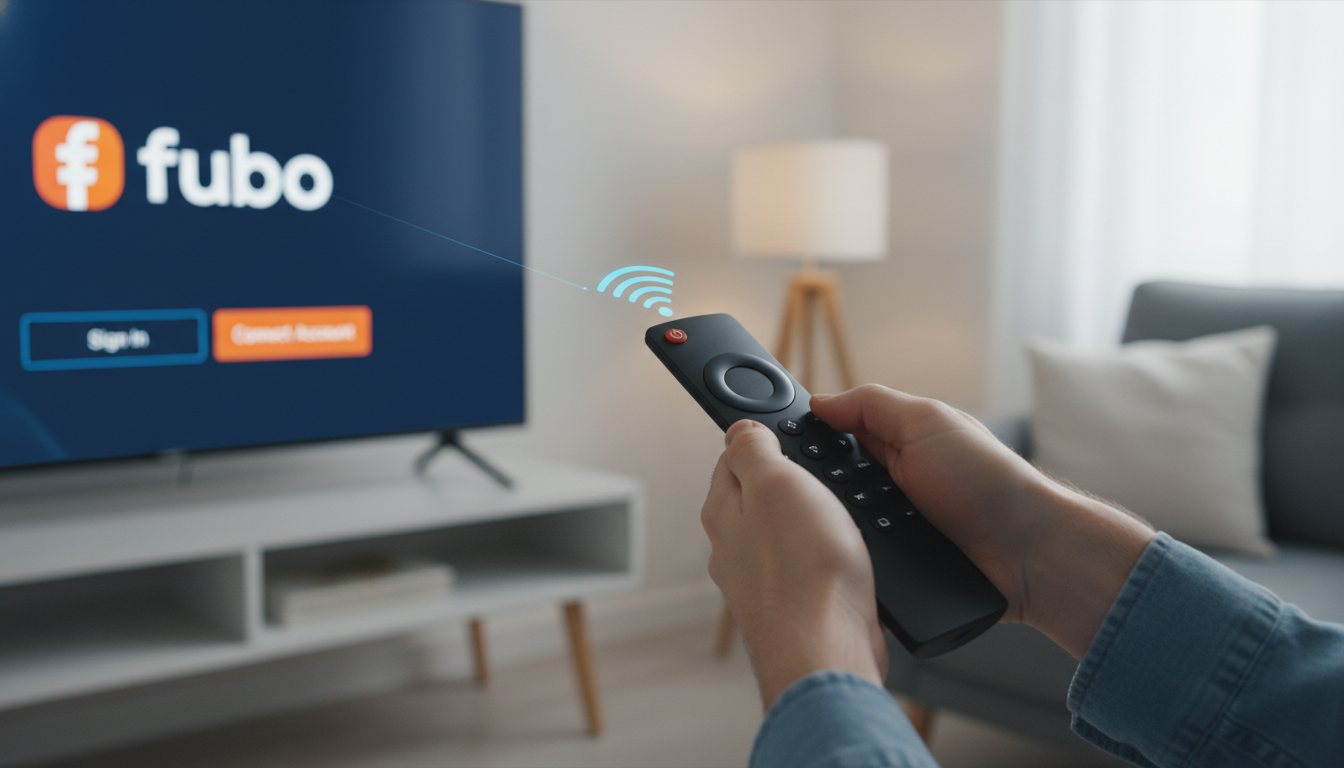
Preparing Your Home Streaming Setup
Setting up a modern home entertainment system requires a few initial preparation steps. Before attempting to link any subscription services, ensure your television, streaming player, and local network are all powered on and connected. Having a secondary device, such as a smartphone, tablet, or computer, close by will make the activation process significantly faster, as you will need to verify your account details on a web browser.
Keep in mind that software interfaces, application features, and subscription rules change frequently. It is highly recommended to check the official support documentation for your specific device manufacturer if you encounter unexpected menus or compatibility blocks during your setup journey.
Sources: support.fubo.tv
Setting Up Your Google TV Device
If you are using a Google TV device to access your streaming apps, you must first complete the initial hardware configuration. Plug the device directly into your television's HDMI port and switch your TV input to match that specific port. To begin interacting with the screen, pair your remote control by pressing and holding both the Back and Home buttons together.
Once paired, you will be prompted to select your preferred language and region settings. This establishes the basic operating framework for your device, allowing it to load the correct local application store and system services required for streaming platforms.
Sources: support.google.com
Configuring Network and Remote Connections
To finish setting up your streaming player, you can choose between a fast mobile-based setup or a manual configuration. If you opt for the mobile route, ensure your phone's Bluetooth and Wi-Fi are active, then scan the QR code displayed on the television. Alternatively, you can complete the process manually using your remote control by navigating down on the QR screen and selecting the manual option.
Be aware of local network restrictions during this phase. Streaming devices generally do not support WPA2-Enterprise networks, which are common in dorms or corporate offices, and some hardware may specifically require a 5 GHz Wi-Fi band to connect. If you experience setup errors, you can hold down the Back button on your remote control to open troubleshooting menus.
Sources: support.google.com
Generating the Fubo Activation Code
With your streaming device connected to the internet, download and install the Fubo application from the platform's app store. Launch the app on your television screen and select the option to sign in. To avoid typing your full email and password with a standard remote control, choose the option to log in using an activation code.
The application will immediately generate a unique, randomized code on your television screen. Keep this screen open and active; do not close the app or turn off the TV, as doing so will invalidate the code and force you to restart the process.
Sources: support.fubo.tv
Linking Your Account via the Web Portal
Once the code is visible on your TV, switch to a separate device like a mobile phone, tablet, or desktop computer. Open your preferred web browser and navigate directly to the activation address at fubo.tv/connect. If you are not already logged into your account on that browser, you will be prompted to enter your subscription credentials.
After successfully logging into your profile, enter the exact activation code displayed on your TV screen into the web form and click submit. A confirmation message will appear in your browser, and the television application will automatically refresh to load your home screen and profile selections.
Sources: support.fubo.tv
Troubleshooting Code Errors and Expirations
The temporary codes used for device activation are highly secure but expire after five minutes. If you encounter an error message after entering the code on the web portal, look back at your TV screen to see if a new code has been generated automatically. If so, refresh your web browser page and try entering the new sequence.
Additionally, make sure you have an active, paid subscription before attempting to sign in. If the activation portal continues to fail or reject your codes, you can bypass the web-based system entirely by selecting the manual sign-in option on your television and typing your email and password using the remote control.
Sources: support.fubo.tv
Ensuring System and Browser Compatibility
To prevent connection issues when setting up your streaming devices, keep your mobile and desktop operating systems updated. Mobile-based setups often require relatively recent software, such as Android version 9.0 or higher, or iOS version 17 or higher. If you are using a computer to complete the web-based activation, running the latest system updates can resolve underlying network, driver, or browser bugs.
For Windows users, keeping your operating system up to date through the standard update utility ensures that your network adapters, Bluetooth drivers, and security certificates are fully compatible with modern web protocols. Always verify your local system settings if you run into persistent connection drops during the device linking process.
Sources: support.google.com, support.microsoft.com