How to Set Up and Connect Your Google TV Streaming Device
Learn the fastest ways to link your smart television or streaming player to your network and mobile devices for a seamless entertainment experience.
Preparing Your Hardware and Accounts
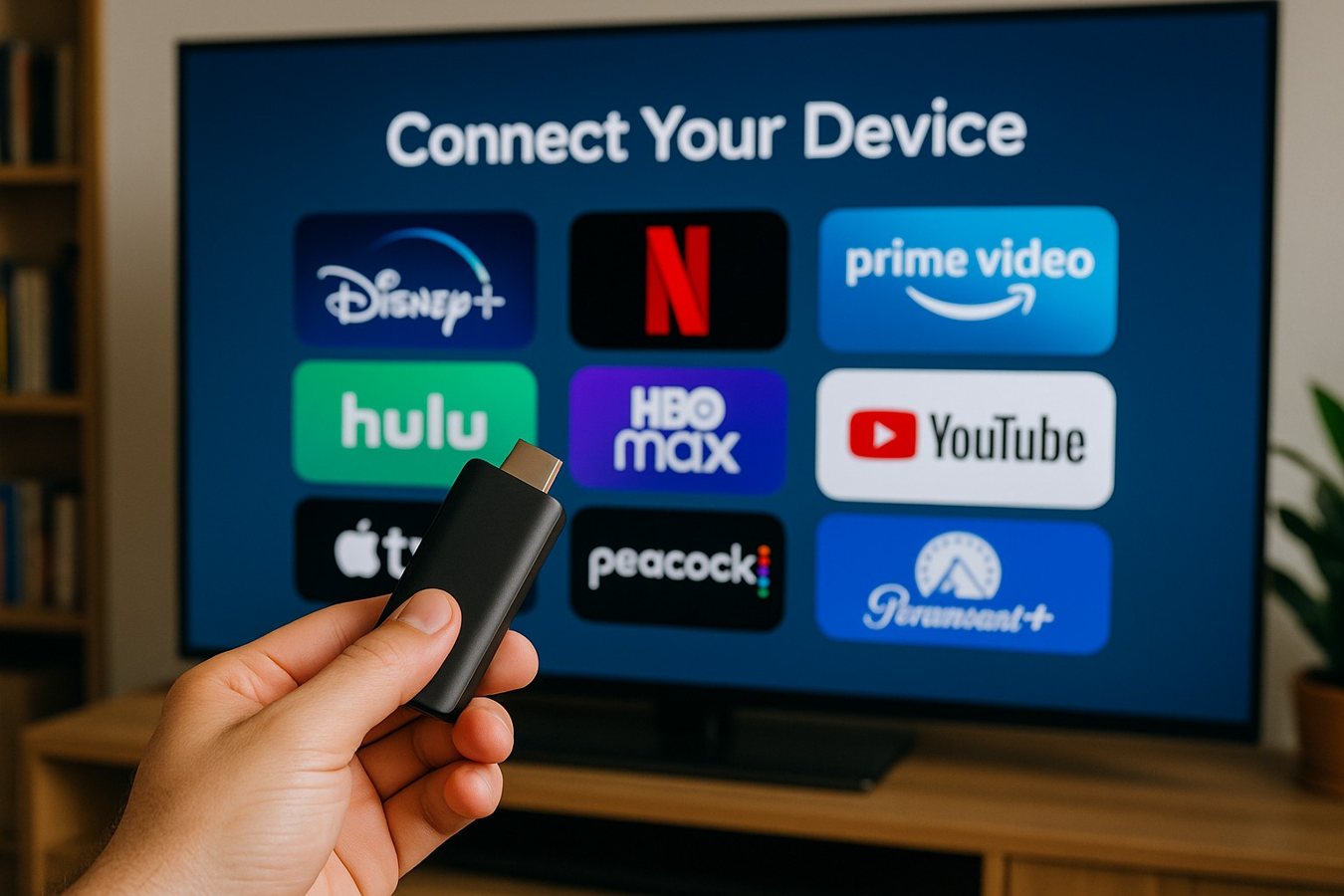
Before diving into the software configuration, you must physically prepare your hardware. Connect your streaming media player directly to an open HDMI port on your television or display. Once plugged into a power source, switch your TV's input source to match the designated HDMI port you used.
You will also need a few essential credentials ready. Ensure you have an active Google Account and a stable home internet connection, which can be either a wireless Wi-Fi network or a wired Ethernet connection. Keep in mind that features, regional services, and specific applications vary globally, and some manufacturers or local providers might impose additional terms or fees. Because these policies can shift, it is always wise to confirm local rules and pricing structures directly with your service provider.
Sources: support.google.com
Pairing Your Remote and Enabling Accessibility
When you power on the device for the first time, you must establish a connection between your physical remote control and the streaming player. While many modern devices come paired right out of the box, you may need to initiate this manually. To trigger manual pairing, press and hold the Back and Home buttons on your remote simultaneously. If you are using a third-party manufacturer's model, check the television screen for custom instructions.
After pairing, you will select your preferred language. If you or someone in your household requires spoken feedback, you can activate the TalkBack accessibility tool at this stage. To do this, press and hold the Back and Down arrow buttons on your remote control for three seconds. Some devices will also prompt you to select your geographical region during this initial boot sequence.
Sources: support.google.com
The Express Mobile Setup Option
The fastest way to configure your new streaming hub is by leveraging your smartphone, which bypasses typing long passwords with a remote. To use this streamlined method, first ensure your mobile phone has both Bluetooth and Wi-Fi enabled.
Look at your television screen for a QR code. Open your smartphone's camera, scan the code, and follow the prompts displayed on both your phone and TV screen. If you are using a nearby Android device, it may even display an automated setup notification without requiring you to scan anything. To use this fast-track method, your mobile device must run updated software: Android devices require OS version 9.0 or higher, while iPhones require iOS 17 or higher.
Sources: support.google.com
The Legacy App-Based Setup
If the direct QR code method does not launch, or if you prefer using a dedicated smart home application, you can utilize the legacy setup path. Start by turning on your phone's Bluetooth and Wi-Fi, then download and open the official Google Home app on your iOS or Android device.
Inside the app, navigate to the "Devices" tab at the bottom of the screen, select the option to add a Google Nest or partner device, and choose or create your home profile. When prompted, tap "Scan code," grant the app permission to access your smartphone's camera, and scan the QR code displayed on your TV screen. It may take several minutes for the devices to sync. If you are using an iPhone and have the Google TV app installed, ensure the Google TV app is updated to version 3.3100002 or higher to avoid compatibility conflicts.
Sources: support.google.com
Manual Setup via TV Remote
If you do not have a smartphone on hand, or if you experience connectivity issues while trying to link your mobile device, you can complete the entire configuration manually. While using a physical remote to type passwords and email addresses takes longer, it remains a reliable alternative.
To switch to this method, navigate to the QR code screen on your TV, press the Down arrow button on your remote control, and select "Set up on TV instead" or "Manual setup." From there, use the on-screen keyboard to input your Wi-Fi credentials and Google Account details. If you get stuck or the screen freezes, press and hold the Back button on your remote control until you see a "Having Trouble" message appear on the screen to reset the process.
Sources: support.google.com
Network Compatibility and Troubleshooting
Network settings are a common hurdle when connecting new smart devices. Be aware that enterprise-grade networks, specifically WPA2-Enterprise networks, are not supported by these streaming devices. Additionally, certain streaming player models demand a 5 GHz Wi-Fi band to function properly, so you may need to adjust your router settings if you only broadcast a 2.4 GHz signal.
Because software requirements, regional app availability, and pricing terms can change over time, we recommend checking your specific hardware manufacturer's documentation for the latest updates. For broader network troubleshooting or integrating streaming devices with other household operating systems, you can also consult general operating system resources like Microsoft's Windows support pages to verify local network sharing settings.
Sources: support.google.com, support.microsoft.com